


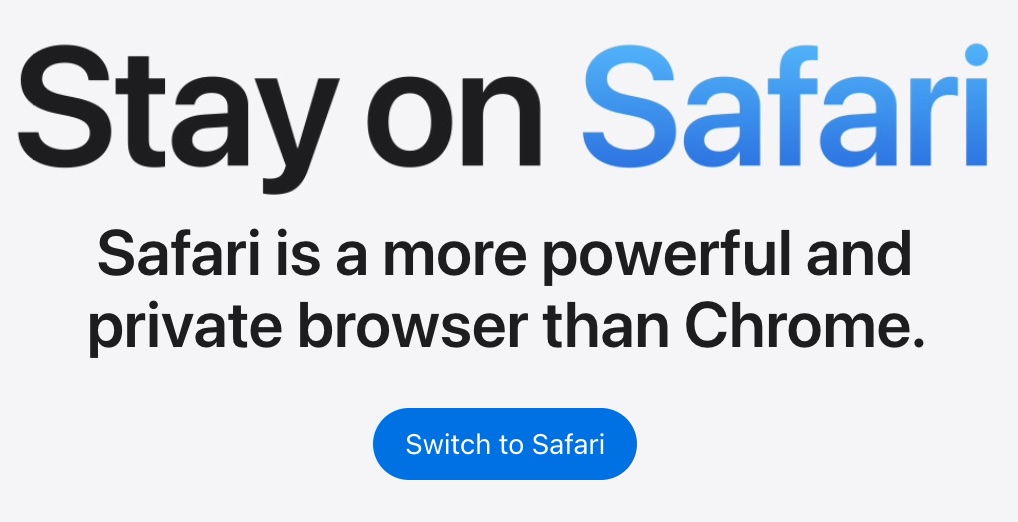
Using Chrome on Your Mac? Here’s Why Safari Is Worth Another Look
If you’ve been using Chrome on your Mac for years, you might not have given Safari much thought lately. Apple’s comparison page makes a case for taking another look, particularly if battery life and privacy matter to you.
Better Battery Life—and a Potential Speed Boost
Safari is designed for Apple devices, and Apple says that integration helps it run efficiently. In Apple’s testing, Safari delivered up to five more hours of video streaming on a MacBook compared with Chrome. Apple also reports up to 35% faster loading of frequently visited websites.
There’s an important detail here: these are Apple’s test results using specific hardware, browser versions, and conditions. They don’t mean every website will load 35% faster or that every MacBook will get five extra hours of battery life. Your results will depend on your Mac, what you’re doing, and how it’s configured.
Privacy Protections Are Already Built In
Safari blocks third-party tracking cookies by default and uses Intelligent Tracking Prevention to help limit companies’ ability to follow your browsing activity across websites. Apple’s comparison notes that Chrome doesn’t provide the same third-party cookie blocking by default.
That doesn’t make you anonymous online, but it does mean Safari includes protections without requiring you to install an extension or start digging through settings.
Useful Features Beyond Speed
A few Safari features are worth trying:
- Reader removes distracting extras so you can focus on an article.
- Distraction Control lets you hide bothersome page elements and remembers your choices.
- Profiles keep work and personal browsing histories, favorites, and Tab Groups separate.
- iCloud syncing lets you access tabs, bookmarks, and browsing history across your Apple devices.
- Password monitoring alerts you if a saved password appears in a known third-party data leak.
If you use Google Docs, Sheets, or Slides, you can keep using them in Safari. Apple also provides ways to import bookmarks and saved passwords from Chrome, so trying Safari doesn’t have to mean starting over.
Give It a Try Without Giving Up Chrome
You don’t have to make this an all-or-nothing decision. Try Safari for your everyday browsing and keep Chrome available for anything you prefer to use there.
To make Safari your default browser on a Mac running macOS Ventura or later:
Select Safari.
Open System Settings.
Select Desktop & Dock.
Scroll to Default web browser.
https://www.apple.com/safari/switch
